TV Cast Pro for LG webOS
- 4.2
- Rating
- 100.00K
- Installs
- $6.99
- Price

 Analysis by App-foxy
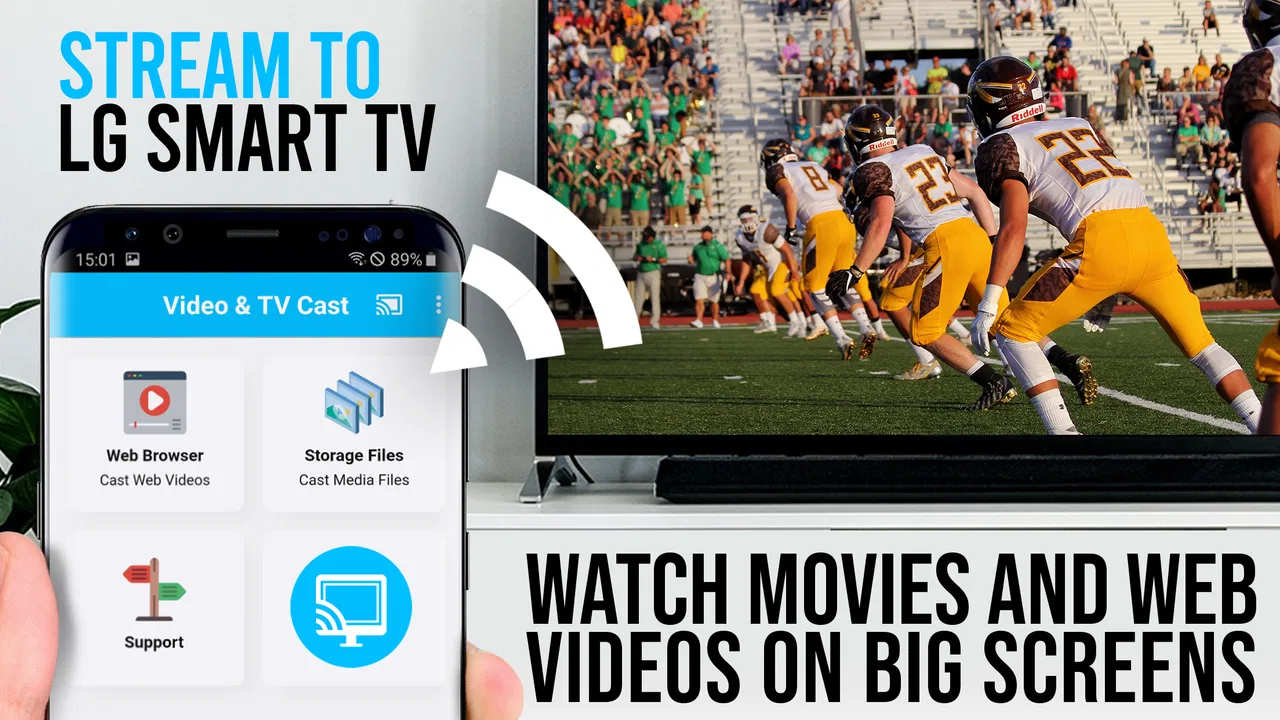
I spent time with TV Cast Pro for LG webOS as a focused casting tool rather than treating it like a general media player. Its purpose is straightforward: browse for web videos, online movies, and livestreams on a phone, then send compatible content to an LG television. That narrow job is also the key to understanding its value. It can make a phone a more convenient remote browsing point, but it is not a replacement for every streaming app, a universal solution for protected video, or a complete home-theater system.
The app comes from 2kit consulting and sits in the video players and editors category. It is a paid app priced at $6.99, carries an Everyone age rating, and has reached over 100 thousand installs. Its average rating is 4.2 from around 5.2 thousand ratings, with roughly 410 written reviews. Those figures suggest a reasonably established product, although I would still judge it by how well it fits your particular LG setup and viewing habits rather than by popularity alone.
What using TV Cast Pro for LG webOS is really like
The first thing I noticed is that the app is built around a two-device routine. The phone is where I search, open, and select content; the LG television is where I watch. That sounds obvious, but it changes the experience compared with opening a native TV app. If I already know which service I want and that service has a good LG webOS application, using the television’s own app is usually simpler. The casting app becomes more interesting when the video is on a website, when the TV app is awkward to navigate, or when I want to keep browsing on a smaller touchscreen.
You May Also Like

 Blood Strike: 2.5 Anniversary
Blood Strike’s Loadouts Turn Every Drop Into a Tactical Gamble
A close look at Blood Strike’s custom loadouts: how fast access to signature weapons reshapes its battle royale rhythm, rewards preparation, and narrows the gap between fights.

 Pandora - Music & Podcasts
Pandora’s Music Is Easy to Start, but Harder to Recover
Pandora’s strength is its low-effort path from a seed to a station. Its weak spot is how much confidence it asks you to place in connection, setup, and quiet recovery.

 8 Ball Pool
 Is Built on Rivalries, Rematches, and Routine
A close look at the rivalries, rematches, shared routines, and unanswered safety questions that turn a quick pool match into a persistent mobile community.

 Samsung Music
’s Quiet Strength Is Playing What You Already Own
Its reach comes less from spectacle than from dependable access to a personal library. That simplicity is both the app’s strongest retention engine and its ceiling.

 AccuWeather: Weather Radar
AccuWeather Review: A Quick, Clear Forecast for Everyday Decisions
For everyday plans, the best forecast is the one you can understand quickly. AccuWeather makes rain timing, radar, and local conditions easy to act on, with a few trade-offs.

 Hill Climb Racing
Why Hill Climb Racing Still Turns Crashes Into One More Run
A tiny car, a bumpy hill and one more upgrade: Hill Climb Racing keeps resurfacing because its simple chaos makes every near-miss feel personal.
More From Our News Desk
View All News


That division of labor is especially useful for livestreams and web pages that are easier to explore on a phone. A touchscreen keyboard and mobile browser can be faster than entering a long search phrase with a television remote. I can also look through several pages without covering the television with menus. Once the correct video is found, the TV becomes the viewing screen while the phone remains the control point.
There is an important distinction between finding a video and successfully playing it on the television. A web page may contain advertising, embedded players, login prompts, or a stream format that does not cooperate with casting. The app’s promise is strongest with ordinary web video that exposes a compatible playback stream. It is less convincing when the content is tightly protected or designed only for a service’s official application. I would not buy it expecting every video on the internet to transfer perfectly.
Setup depends on the home network
For casting to work smoothly, the phone and LG television need to be reachable on the same local network. In everyday terms, that normally means checking that both devices are connected to the same home Wi-Fi rather than placing one on a guest network or a separate access point. When the TV does not appear, this is the first practical check I would make, before reinstalling anything.
Network isolation can create confusing behavior. A phone may have internet access while still being unable to discover the television. Guest Wi-Fi, mesh-network settings, and router separation can all affect local device visibility. This is not a flaw unique to this app, but it is a real part of the ownership experience. I would also keep the TV switched on and awake during initial setup, because a sleeping television can look unavailable even when the network arrangement is correct.
Once a television is found, I would select it carefully if there is more than one LG set in the home. A clear device name helps prevent the common mistake of sending a family-room video to a bedroom screen. This small organizational step matters more than it sounds, especially when the app is used by several people.
The best everyday workflow
My preferred workflow is to decide first whether the video is genuinely web-based and whether I need the phone for discovery. I open the page, start the content, and then use the app’s casting process rather than assuming that any visible play button will transfer cleanly. If playback begins on the phone but the television stays idle, I treat that as a compatibility warning instead of repeatedly tapping the same control.
A useful habit is to test a short section before settling in for a long film or livestream. This catches problems with the selected stream, the website’s player, or the television connection early. It also avoids the frustrating situation where a video appears to have been sent successfully but stops after an advertisement or a brief preview.
For a realistic evening example, imagine finding a public livestream through a mobile browser while preparing dinner. With a native TV app, I might have to search again using the remote, and the stream may be difficult to locate. With this tool, I can find the page on the phone, send it to the LG television, and leave the larger screen playing while I use the phone for basic control. That is the kind of small convenience that makes the $6.99 purchase easier to justify.
Where it differs from normal alternatives
The most direct alternative is the LG television’s own web browser. That option avoids installing a separate phone app and may be enough for occasional browsing. The trade-off is that typing, scrolling, and navigating complex pages with a TV remote can feel slow. TV Cast Pro is more appealing when the phone is the easier browsing device and the television is mainly the display.
Native streaming applications are another alternative, and they are usually preferable for services with strong LG webOS support. They tend to handle sign-in, subtitles, recommendations, playback history, and protected content more consistently. I would use the official TV app whenever it offers the program I want. This casting tool earns its place for material that lives outside those polished app ecosystems.
Screen mirroring is a third comparison point. Mirroring duplicates what is on the phone, including notifications, orientation changes, and interruptions. A casting workflow can be more comfortable because the TV handles the viewing while the phone is used to choose content. However, casting is not the same as mirroring: a web page must expose a playable stream, and some content will not transfer simply because it plays on the handset.
Trust starts with a narrow, understandable purpose
When I evaluate an app that connects a phone to a television, I want its behavior to be easy to understand. Here, the central action is visible: browse or open web content, choose the LG display, and attempt playback. That clarity is reassuring because the app is not asking me to treat an unknown service as a complete entertainment platform. At the same time, I would not confuse a simple purpose with a guarantee about privacy or compatibility.
The developer is 2kit consulting, and the app has been available since November 11, 2016. Its current version is 2.60 and it requires Android 7.0 or later. That long availability gives the product some useful context: it is not a brand-new experiment, but age alone does not tell me how well it will behave with every current website or LG television. I would still keep expectations practical and test the exact content I care about.
The Everyone rating makes it suitable in terms of the app’s stated age classification, but the websites opened through it can have their own material and policies. Parents should therefore think about the destination pages, not only the app’s label. A browser-based casting tool can lead to a wide range of online content, so household supervision still matters.
Permissions, data choices, and moments that deserve attention
For trust, I focus on what the app visibly asks me to do and what information appears during use. A casting app needs to identify a television on the local network, and it may need the phone to open web pages or handle playback controls. Those actions are directly related to its purpose. If a permission prompt appears, I would read it rather than approving everything automatically, especially when the request seems unrelated to discovering or controlling the TV.
I would also inspect the app’s permission screen in the phone settings after installation. This gives me a practical way to review what remains enabled and to remove access I no longer want. The exact controls can vary by operating system, so I treat the settings page as the reliable place for my own device rather than assuming every phone presents choices identically.
The most data-sensitive moments are often outside the casting tap itself. Opening a website can expose browsing activity to that site, and signing in to a streaming service involves the service’s own account practices. I would avoid entering credentials into unfamiliar pages simply because they are displayed through a television workflow. If a service has an official LG app, that route is generally my preference for account-heavy viewing.
I am also careful with links shared by other people. A casting tool can make a web page feel like part of the living-room setup, but the page is still an external destination. I check the domain, look for the expected sign-in screen, and avoid downloading files offered by a suspicious page. The app should not be treated as a safety filter for the entire web.
Keeping control instead of letting the app take over
User agency matters most when a phone becomes the remote. I want to know which television is selected, which page is being sent, and when I can stop playback. I would disconnect or close the casting session when finished, particularly on a shared network. That is a simple habit, but it prevents the next person using the phone from accidentally controlling the previous session.
Shared households should agree on a basic routine. Rename televisions clearly, avoid leaving personal browsing pages open, and use separate accounts where the destination service supports them. These steps are not glamorous features, but they reduce the chance of sending private recommendations, account pages, or unsuitable content to a communal screen.
There is also a useful trade-off between convenience and control. Sending a video from the phone is quick, but the phone becomes part of the viewing chain. If its battery is low, it loses network access, or another person needs it, the experience may become less convenient. For a long, important film, I would rather use the native TV application when available. For a short clip, a live web page, or a one-off event, the phone-led approach makes more sense.
Limitations I would want buyers to understand
The biggest limitation is compatibility, not the price. Web video is inconsistent. Some pages provide a clean stream that casts well; others rely on protected playback, unusual embeds, or interactive controls that do not translate to the television. A successful phone preview is not proof that the same content will work on the LG screen.
Livestreams can be particularly unpredictable because a stream may change format, require a session token, or include a player that behaves differently on a TV. I would test the event before relying on it for a group gathering. If missing the start would be a serious problem, the broadcaster’s official TV application or a dedicated supported device is the safer choice.
The paid model is another consideration. At $6.99, the app is not a major purchase, but it is still difficult to recommend to someone who only wants to cast an occasional clip and already has a reliable built-in option. The value improves for people who regularly browse web video on a phone and repeatedly want it on an LG television.
Support for Android 7.0 and later makes the app accessible to older Android devices, but compatibility with the phone is only one part of the equation. The LG television, router, website, and video player all participate in the result. I would not interpret the minimum operating-system requirement as a promise that every older handset or every modern web page will behave identically.
Who should use it, and who should skip it
I think it is a good fit for an LG owner who often discovers videos in a mobile browser, watches independent web streams, or dislikes typing long searches with a television remote. It is also useful for households where the phone is the fastest way to choose content and the TV is mainly a large, shared display.
I would be more cautious if your viewing is almost entirely inside subscription services with official LG applications. In that situation, native apps usually offer better continuity, more predictable controls, and fewer compatibility surprises. I would also skip this purchase if you expect flawless playback from every website, need a full mirroring replacement, or want a solution that works without checking the home network.
Before buying, I would make a short checklist: confirm that the television and phone can share the same local network, identify one or two web videos you actually want to watch, and decide whether those services already have suitable LG apps. That test answers the practical question better than the store summary does. If the target content is web-first and the built-in browser is frustrating, this app has a clear role. If not, it may sit unused.
My cautious verdict
After using it as a dedicated bridge between mobile web browsing and an LG webOS screen, I see TV Cast Pro for LG webOS as a useful specialist tool rather than an essential app for everyone. Its strongest benefit is convenience: the phone is better for finding certain web videos, while the television is better for watching them. That combination can feel natural once the network and content compatibility are right.
My recommendation is conditional but positive. I would choose it for frequent web-video casting and for people who understand that “cast” does not mean universal support for every protected or embedded player. I would choose the official TV app instead when one exists, and I would use the LG browser when the task is occasional and simple. The sensible buying decision is to match the app to your actual web-video routine, not to expect it to replace the entire LG entertainment setup.
The rating of 4.2 and the established install base give it a reasonable level of confidence as a maintained casting option, while the paid price makes a little preparation worthwhile. Check the network, test the content, review permissions and account behavior on your own phone, and keep control of the pages you open. If those conditions suit you, the app can remove a surprisingly annoying part of watching web content on an LG television.
FAQs for TV Cast Pro for LG webOS
01What is TV Cast Pro for LG webOS and what does it do?
TV Cast Pro for LG webOS is a casting and mirroring companion app designed to send selected online videos, photos, and other supported media from a mobile device to a compatible LG Smart TV. During testing, its main advantage was letting the phone act as a convenient remote browser while playback appeared on the television. It is primarily intended for web-based media, not as a replacement for every streaming service’s official TV application.
02How do I connect TV Cast Pro to my LG Smart TV?
Your phone and LG webOS television generally need to be connected to the same Wi-Fi network before pairing. After opening the app, you select the television from the available devices and confirm the connection on the TV if requested. The exact menus can vary according to the LG model, webOS version, router settings, and app release. If the TV is not detected, checking network isolation, restarting both devices, and updating the software are sensible first steps.
03Can TV Cast Pro for LG webOS mirror my entire phone screen?
The app is mainly focused on casting compatible web videos and media rather than providing unrestricted, low-latency screen mirroring. This distinction matters for games, video calls, protected streaming services, and apps that block external playback. Some functions may depend on the device, operating system, and the type of content being opened. Before downloading, users who specifically need full-screen mirroring should verify the current feature description and compatibility for their phone and LG television.
04Does TV Cast Pro work with Netflix, YouTube, and other streaming services?
Compatibility depends on how each service delivers and protects its content. Public web videos and many ordinary websites may cast successfully, while subscription platforms using digital rights management can restrict playback through third-party casting tools. YouTube may offer a smoother experience through its official application, and services such as Netflix commonly recommend their own LG webOS app. TV Cast Pro should therefore be viewed as a flexible web-video caster, not a universal solution for every streaming platform.
05Is TV Cast Pro for LG webOS free, and are there any limitations?
The app may be available to install at no initial cost, but advanced features, an ad-free experience, or unrestricted casting can depend on the edition and any in-app purchase offered by the developer. Users should review the current store listing for pricing, subscriptions, advertisements, and supported features because these details can change. Performance also relies on a stable Wi-Fi connection, compatible media formats, and the capabilities of the particular LG webOS television.
Pros
- Casts videos
- photos
- and music directly to compatible LG webOS TVs.
- Simple interface makes finding and sending media quick for most users.
- Supports streaming online content without mirroring the entire phone screen.
- Playback controls remain available on the mobile device during casting.
- Useful for sharing personal media with family on a larger display.
Cons
- Some websites may not cast correctly because of unsupported video formats.
- Advanced features may require an additional purchase or subscription.
- Performance depends heavily on Wi-Fi strength and network compatibility.
- The app may not work with every LG TV model or older webOS version.
- Casting protected content from certain streaming services may be restricted.

TV Cast Pro for LG webOS
Gallery